How to Use Layered Panes
A layered pane is a Swing container that provides a third
dimension for positioning components: depth, also known as Z
order. When adding a component to a layered pane, you specify its depth
as an integer. The higher the number, the higher the depth. If components
overlap, components at a higher depth are drawn on top of components at a
lower depth. The relationship between components at the same depth is
determined by their positions within the depth.
Every Swing container that has a root
pane -- such as JFrame,
JApplet,
JDialog,
or JInternalFrame
-- automatically has a layered pane. Most programs don't explicitly use the
root pane's layered pane, so we don't discuss it in this section. You can find
information about it in The
Root Pane, which provides an overview, and The
Layered Pane, which has further details. This section concentrates on
telling you how to create your own layered pane and use it anywhere you might
use a regular Swing container.
Swing provides two layered pane classes. The first, JLayeredPane , is the
class that root panes use and is the class used by the example in this
section. The second,
, is the
class that root panes use and is the class used by the example in this
section. The second, JDesktopPane, is a JLayeredPane
subclass that's specialized for the task of holding internal frames. For
examples of using JDesktopPane, see How
to Use Internal Frames.
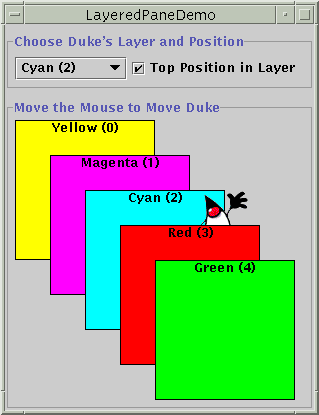
Here's a picture of an application that creates a layered pane and places
overlapping, colored labels
at different depths:
Try this:
- Compile and run the application. The source file is
LayeredPaneDemo.java . You will also need
the
. You will also need
the dukeWaveRed.gif
image file.
See Getting Started with Swing if you need help compiling or
running this application.
- Move the mouse around in the lower part of the window. The image of
Duke drags behind the green and red labels, but in front of the other
three labels.
- Use the combo box at the top of the window to change Duke's depth. Use
the check box to set whether Duke is in the top position -- position 0 --
within the current depth.
Here's the code from the example program that creates the layered
pane:
layeredPane = new JLayeredPane();
layeredPane.setPreferredSize(new Dimension(300, 310));
layeredPane.setBorder(BorderFactory.createTitledBorder(
				    "Move the Mouse to Move Duke"));
layeredPane.addMouseMotionListener(new MouseMotionAdapter() {
    ...
});
The code uses JLayeredPane's only constructor
-- the no-argument constructor -- to create the layered pane. The rest of the
code uses methods inherited from superclasses to give the layered pane a
preferred size and a border, and add a mouse-motion listener to it. The
mouse-motion listener just moves the Duke image around in response to mouse
movement.
Ultimately, the example adds the layered pane to the frame's content pane:
Container contentPane = getContentPane();
...
contentPane.add(layeredPane);
As we'll show you a bit later, you add components to a
layered pane using an add method. When adding a component to a
layered pane, you specify the component's depth, and optionally, its position
within its depth. The layered pane in the demo program contains six labels --
the five colored labels and a sixth one that displays the Duke image. As the
program demonstrates, both the depth of a component and its position with that
depth can change dynamically.
The rest of this section covers these topics:
Adding Components and Setting Component Depth
Here's the code from the sample program that adds the colored
labels to the layered pane:
for (int i = 0; i < ...number of labels...; i++) {
    JLabel label = createColoredLabel(...);
    layeredPane.add(label, new Integer(i));
    ...
}
You can find the implementation of the
createColoredLabel method in the source code for the program. It
just creates an opaque JLabel initialized with a background
color, a border, some text, and a size.
The example program uses a two-argument version of the add
method. The first argument is the component to add, the second is an
Integer object, specifying the depth. This program uses the
for loop's iteration variable to specify depths. The actual
values don't matter much. What matters is the relative value of the depths and
that you are consistent within your program in how you use each depth.
Note: If you use the root pane's layered pane, be
sure to use its depth conventions. Refer to The
Layered Pane for details. That section shows you how to modify
LayeredPaneDemo to use the root pane's layered pane. With the
modifications, you can see how the dragging Duke image relates to the combo
box in the control panel.
As you can see from the example program, if components overlap, components
at a higher depth are on top of components at a lower depth. To change a
component's depth dynamically, use the setLayer method. In the
example, the user can change Duke's layer by making a selection from the combo
box. Here's the actionPerformed method of the action listener
registered on the combo box:
public void actionPerformed(ActionEvent e) {
    int position = onTop.isSelected() ? 0 : 1;
    layeredPane.setLayer(dukeLabel, layerList.getSelectedIndex(),
		         position);
}
The setLayer method used here takes three
arguments: the component whose depth is to be set, the new depth, and the
position within the depth. JLayeredPane has a two-argument
version of setLayer that takes only the component and the new
depth. That method puts the component at the bottom position in its depth.
A note of caution: When adding a component to a
layered pane you specify the layer with an Integer. When using
setLayer to change a component's layer, you use an
int. You might think that if you use an int
instead of an Integer with the add method, the
compiler would complain or your program would throw an illegal argument
exception. But the compiler says nothing, which results in a common
layered pane problem. You can use the API tables at the end of this
section to check the types of the arguments and return values for methods
that deal with layers.
Setting a Component's Position Within Its Depth
The following code creates the label that displays Duke's image,
and then adds the label to the layered pane.
final ImageIcon icon = new ImageIcon("images/dukeWaveRed.gif");
...
dukeLabel = new JLabel(icon);
dukeLabel.setBounds(15, 225,
                    icon.getIconWidth(),
                    icon.getIconHeight());
layeredPane.add(dukeLabel, new Integer(2), 0);
This code uses the three-argument version of the
add method. The third argument specifies the Duke label's
position within its depth, which determines the component's relationship with
other components at the same depth.
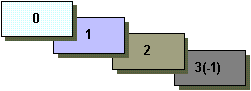
Positions are specified with an int between -1 and (n
- 1), where n is the number of components at the depth. Unlike layer
numbers, the smaller the position number, the higher the component within its
depth. Using -1 is the same as using n - 1; it indicates the
bottom-most position. Using 0 specifies that the component should be in the
top-most position within its depth. As the following figure shows, with the
exception of -1, a lower position number indicates a higher position within a
depth.
 A component's position within its layer can change dynamically. In the
example, you can use the check box to determine whether Duke label is in the
top position at its depth. Here's the
A component's position within its layer can change dynamically. In the
example, you can use the check box to determine whether Duke label is in the
top position at its depth. Here's the actionPerformed method for
the action listener registered on the check box:
public void actionPerformed(ActionEvent e) {
    if (onTop.isSelected())
        layeredPane.moveToFront(dukeLabel);
    else
        layeredPane.moveToBack(dukeLabel);
}
When the user selects the check box, the
moveToFront method moves Duke to the front (position 0). And when
the user deselects check box, Duke gets moved to the back with the
moveToBack method. You can also use the setPosition
method or the three-argument version of setLayer to change a
component's position.
Laying Out Components in a Layered Pane
By default a layered pane has no layout manager. This means that
you typically have to write the code that positions and sizes the components
you put in a layered pane.
The example uses the setBounds method to set the size and
position of each of the labels:
dukeLabel.setBounds(15, 225,
                    icon.getIconWidth(),
                    icon.getIconHeight());
...
label.setBounds(origin.x, origin.y, 140, 140);
When the user moves the mouse around, the program calls
setPosition to change Duke's position:
dukeLabel.setLocation(e.getX()-XFUDGE, e.getY()-YFUDGE);
Although a layered pane has no layout manager by default,
you can still assign a layout manager to the layered pane. All of the layout
managers provided by the Java platform arrange the components as if they were
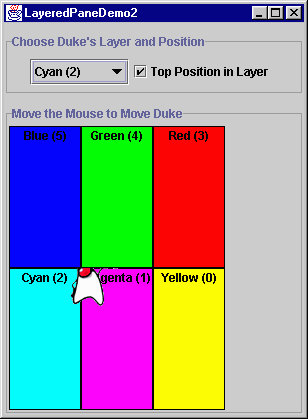
all on one layer. Here's a version of the previous demo that sets the layered
pane's layout manager to an instance of GridLayout, using that
layout manager to lay out six colored labels.
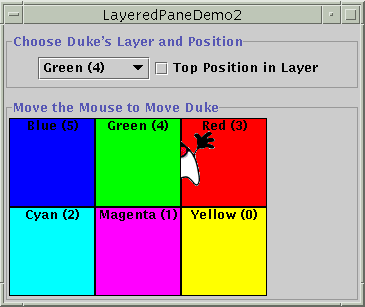 You can find the code for this program in
 LayeredPaneDemo2.java. This program also needs
the dukeWaveRed.gif
image file.
Many programs use intermediate containers (such as panels) and their layout
managers to lay out components on the same layer, but use absolute positioning
to lay out components on different layers. For more information about absolute
positioning, see Doing Without a Layout Manager (Absolute Positioning) .
.
The following tables list the commonly used
JLayeredPane constructors and methods. Other methods you are most
likely to invoke on a JLayeredPane object are those it inherits
from its superclasses, such as setBorder,
setPreferredSize, and so on. See The
JComponent API for tables of commonly used inherited methods.
The API for using layered pane falls into these categories:
Creating or Getting a Layered Pane
| Method |
Purpose |
JLayeredPane() |
Create a layered pane. |
JLayeredPane getLayeredPane()
(in JApplet, JDialog,
JFrame, and JInternalFrame) |
Get the automatic layered pane in an applet, dialog, frame, or
internal frame. |
Layering Components
| Method |
Purpose |
void add(Component)
void add(Component,
        Integer)
void add(Component, Integer, int) |
Add the specified component to the layered pane. The second
argument, when present, indicates the layer. The third argument, when
present, indicates the component's position within its layer. If you use
the one-argument version of this method, the component is added to layer
0. If you use the one- or two-argument version of this method, the
component is placed underneath all other components currently in the
same layer. |
void setLayer(Component, int)
void
setLayer(Component, int, int) |
Change the component's layer. The second argument indicates the
layer. The third argument, when present, indicates the component's
position within its layer. |
int getLayer(Component)
int
getLayer(JComponent) |
Get the layer for the specified component. |
int getComponentCountInLayer(int)
|
Get the number of components in the specified layer. The value
returned by this method can be useful for computing position values.
|
Component[]
getComponentsInLayer(int) |
Get an array of all the components in the specified layer. |
int highestLayer()
int
lowestLayer() |
Compute the highest or lowest layer currently in use.
|
Setting Components' Intra-Layer
Positions
| Method |
Purpose |
void setPosition(Component, int)
int
getPosition(Component) |
Set or get the position for the specified component within its
layer. |
void moveToFront(Component)
void
moveToBack(Component) |
Move the specified component to the front or back of its layer.
|
LayeredPaneDemo.java
import javax.swing.*;
import javax.swing.border.*;
import javax.accessibility.*;

import java.awt.*;
import java.awt.event.*;

public class LayeredPaneDemo extends JFrame {
    private String[] layerStrings = { "Yellow (0)", "Magenta (1)",
                                      "Cyan (2)", "Red (3)",
                                      "Green (4)" };
    private Color[] layerColors = { Color.yellow, Color.magenta,
                                    Color.cyan, Color.red,
                                    Color.green };

    private JLayeredPane layeredPane;
    private JLabel dukeLabel;

    public LayeredPaneDemo()    {
        super("LayeredPaneDemo");

        //Create and load the duke icon.
        final ImageIcon icon = new ImageIcon("dukeWaveRed.gif");

        //Create and set up the layered pane.
        layeredPane = new JLayeredPane();
        layeredPane.setPreferredSize(new Dimension(300, 310));
        layeredPane.setBorder(BorderFactory.createTitledBorder(
                                    "Move the Mouse to Move Duke"));
        layeredPane.addMouseMotionListener(new MouseMotionAdapter() {
            final int XFUDGE = 40;
            final int YFUDGE = 57;
            public void mouseEntered(MouseEvent e) {
                dukeLabel.setLocation(e.getX()-XFUDGE, e.getY()-YFUDGE);
            }
            public void mouseMoved(MouseEvent e) {
                dukeLabel.setLocation(e.getX()-XFUDGE, e.getY()-YFUDGE);
            }
        });

        //This is the origin of the first label added.
        Point origin = new Point(10, 20);

        //This is the offset for computing the origin for the next label.
        int offset = 35;

        //Add several overlapping, colored labels to the layered pane
        //using absolute positioning/sizing.
        for (int i = 0; i < layerStrings.length; i++) {
            JLabel label = createColoredLabel(layerStrings[i],
                                              layerColors[i], origin);
            layeredPane.add(label, new Integer(i));
            origin.x += offset;
            origin.y += offset;
        }

        //Create and add the Duke label to the layered pane.
        dukeLabel = new JLabel(icon);
        dukeLabel.setBounds(15, 225,
                            icon.getIconWidth(),
                            icon.getIconHeight());
        layeredPane.add(dukeLabel, new Integer(2), 0);

        //Add control pane and layered pane to frame.
        Container contentPane = getContentPane();
        contentPane.setLayout(new BoxLayout(contentPane,
                                            BoxLayout.Y_AXIS));
        contentPane.add(Box.createRigidArea(new Dimension(0, 10)));
        contentPane.add(createControlPanel());
        contentPane.add(Box.createRigidArea(new Dimension(0, 10)));
        contentPane.add(layeredPane);
    }

    //Create and set up a colored label.
    private JLabel createColoredLabel(String text,
                                      Color color,
                                      Point origin) {
        JLabel label = new JLabel(text);
        label.setVerticalAlignment(JLabel.TOP);
        label.setHorizontalAlignment(JLabel.CENTER);
        label.setOpaque(true);
        label.setBackground(color);
        label.setForeground(Color.black);
        label.setBorder(BorderFactory.createLineBorder(Color.black));
        label.setBounds(origin.x, origin.y, 140, 140);
        return label;
    }

    //Create the control pane for the top of the frame.
    private JPanel createControlPanel() {
        final JCheckBox onTop = new JCheckBox("Top Position in Layer");
        onTop.setSelected(true);
        onTop.addActionListener(new ActionListener() {
            public void actionPerformed(ActionEvent e) {
                if (onTop.isSelected())
                    layeredPane.moveToFront(dukeLabel);
                else
                    layeredPane.moveToBack(dukeLabel);
            }
        });

        final JComboBox layerList = new JComboBox(layerStrings);
        layerList.setSelectedIndex(2);    //Cyan layer
        layerList.addActionListener(new ActionListener () {
            public void actionPerformed(ActionEvent e) {
                int position = onTop.isSelected() ? 0 : 1;
                layeredPane.setLayer(dukeLabel,
                                     layerList.getSelectedIndex(),
                                     position);
            }
        });

        JPanel controls = new JPanel();
        controls.add(layerList);
        controls.add(onTop);
        controls.setBorder(BorderFactory.createTitledBorder(
                                 "Choose Duke's Layer and Position"));
        return controls;
    }

    public static void main(String[] args) {
        JFrame frame = new LayeredPaneDemo();
		frame.setDefaultCloseOperation(JFrame.EXIT_ON_CLOSE);
        frame.pack();
        frame.setVisible(true);
    }
}
LayeredPaneDemo2.java
import javax.swing.*;
import javax.swing.border.*;
import javax.accessibility.*;

import java.awt.*;
import java.awt.event.*;

public class LayeredPaneDemo2 extends JFrame {
    private String[] layerStrings = { "Yellow (0)", "Magenta (1)",
                                      "Cyan (2)", "Red (3)",
                                      "Green (4)", "Blue (5)" };
    private Color[] layerColors = { Color.yellow, Color.magenta,
                                    Color.cyan, Color.red,
                                    Color.green, Color.blue };

    private JLayeredPane layeredPane;
    private JLabel dukeLabel;

    public LayeredPaneDemo2()    {
        super("LayeredPaneDemo2");

        //Create and load the duke icon
        final ImageIcon icon = new ImageIcon("dukeWaveRed.gif");

        //Create and set up the layered pane
        layeredPane = new JLayeredPane();
        layeredPane.setPreferredSize(new Dimension(300, 310));
        layeredPane.setBorder(BorderFactory.createTitledBorder(
                                    "Move the Mouse to Move Duke"));
        layeredPane.addMouseMotionListener(new MouseMotionAdapter() {
            final int XFUDGE = 40;
            final int YFUDGE = 57;
            public void mouseEntered(MouseEvent e) {
                dukeLabel.setLocation(e.getX()-XFUDGE, e.getY()-YFUDGE);
            }
            public void mouseMoved(MouseEvent e) {
                dukeLabel.setLocation(e.getX()-XFUDGE, e.getY()-YFUDGE);
            }
        });

        layeredPane.setLayout(new GridLayout(2,3));

        //Add several overlapping, colored labels to the layered pane
        //using absolute positioning/sizing.
        for (int i = 0; i < layerStrings.length; i++) {
            JLabel label = createColoredLabel(layerStrings[i],
                                              layerColors[i]);
            layeredPane.add(label, new Integer(i));
        }

        //Create and add the Duke label to the layered pane
        dukeLabel = new JLabel(icon);
        dukeLabel.setBounds(15, 225,
                            icon.getIconWidth(),
                            icon.getIconHeight());
        layeredPane.add(dukeLabel, new Integer(2), 0);

        //Add control pane and layered pane to frame
        Container contentPane = getContentPane();
        contentPane.setLayout(new BoxLayout(contentPane,
                                            BoxLayout.Y_AXIS));
        contentPane.add(Box.createRigidArea(new Dimension(0, 10)));
        contentPane.add(createControlPanel());
        contentPane.add(Box.createRigidArea(new Dimension(0, 10)));
        contentPane.add(layeredPane);
    }

    //Create and set up a colored label
    private JLabel createColoredLabel(String text, Color color) {
        JLabel label = new JLabel(text);
        label.setVerticalAlignment(JLabel.TOP);
        label.setHorizontalAlignment(JLabel.CENTER);
        label.setOpaque(true);
        label.setBackground(color);
        label.setForeground(Color.black);
        label.setBorder(BorderFactory.createLineBorder(Color.black));
        label.setPreferredSize(new Dimension(140, 140));
        return label;
    }

    //Create the control pane for the top of the frame.
    private JPanel createControlPanel() {

        final JCheckBox onTop = new JCheckBox("Top Position in Layer");
        onTop.setSelected(true);
        onTop.addActionListener(new ActionListener() {
            public void actionPerformed(ActionEvent e) {
                if (onTop.isSelected())
                    layeredPane.moveToFront(dukeLabel);
                else
                    layeredPane.moveToBack(dukeLabel);
            }
        });

        final JComboBox layerList = new JComboBox(layerStrings);
        layerList.setSelectedIndex(2);    //cyan layer
        layerList.addActionListener(new ActionListener () {
            public void actionPerformed(ActionEvent e) {
                int position = onTop.isSelected() ? 0 : 1;
                layeredPane.setLayer(dukeLabel,
                                     layerList.getSelectedIndex(),
                                     position);
            }
        });

        JPanel controls = new JPanel();
        controls.add(layerList);
        controls.add(onTop);
        controls.setBorder(BorderFactory.createTitledBorder(
                                 "Choose Duke's Layer and Position"));
        return controls;
    }

    public static void main(String[] args) {
        JFrame frame = new LayeredPaneDemo2();
		frame.setDefaultCloseOperation(JFrame.EXIT_ON_CLOSE);
        frame.pack();
        frame.setVisible(true);
    }
}
Maintained by John
Loomis, last updated 15 July 2000
